Session: one hour. You need: a document, a spreadsheet or a presentation you have to deliver this week anyway, and the material it comes from, for example the document from stage 3.
So far the result stayed in the chat, and you copied it where it was needed. Today you ask for the finished file: a Word document, an Excel sheet, a few slides. This is where the time saved shows, or gets lost: a well laid-out file with a wrong number costs more than a text in the chat, because it looks ready and nobody rereads it. That's why this stage comes after the check.
1. Content first, then form
In the chat ask for the substance, without a file: "From the document I uploaded, propose the outline of a two-page note for [recipient]: the section headings and, for each, the points and numbers you'll use, with the sentence of the document they come from." Correct the outline by talking, as in stage 1. A correction in the chat costs one line; the same correction inside an already formatted file costs a whole round.
2. The file
When the outline is right, ask for the file with the formatting rules:
Turn the agreed outline into a Word document of two pages at most: title, three lines of summary, one section per point. For the headings use Word's styles, Heading 1 and Heading 2, so I can rebuild the table of contents. Use only the numbers in the outline: if you need one that isn't there, leave a space in square brackets and don't estimate it.
For a spreadsheet: "Create an Excel file with [the columns]. Write the totals and percentages as formulas in the cells." For a presentation: "Five slides, one idea per slide, and for each slide a title that states its conclusion."
Here the file is born in the chat and you open it afterwards. Level 2 does the same work inside the programs, on the open file: Word and Outlook in stage 6, Excel with formulas and charts in stage 7, PowerPoint in stage 8.
3. The office look
If your office uses a starting file, with letterhead, fonts and styles already set, upload it and ask: "Use this file as the base: same styles, same header, same margins." Look at the result closely, because the new file is built from scratch and some graphic details can get lost. With a complicated letterhead it's often quicker to ask for the text with the right styles and paste it into the starting file yourself.
4. Changes to a file that already exists
The most frequent case at work is a colleague's document to be corrected, far more often than a new document. Upload the Word file and describe the changes in words, in the chat:
In the attached document: cut paragraph 2 by half, move the table after paragraph 3, in the section "Timing" correct the 2025 dates to 2026. Give me back the same file with the changes as tracked changes, Word's markup, and put [your name] as the author of the changes, so whoever receives it sees them and can accept or reject them one by one.
The file that comes back opens in Word with the changes marked in colour, and in the Reviewing Pane the name you gave appears: it is the form in which a colleague expects to receive a correction, and it saves you comparing two versions by eye. The check is in Word's Review tab: go through the changes one by one before accepting them, and a change you did not ask for you reject. In Claude it works in the chat, with file creation on. In ChatGPT and in Copilot ask for it the same way and look at what comes back: if the file arrives without the changes marked, ask for the list of changes with the sentence before and the sentence after, and apply them yourself. Inside Word, with the document open and Track Changes on, the same work is done without uploading anything: that is stage 6.
5. The check on the file
Open the file in the real application, Word, Excel or PowerPoint, and not just in the chat preview: the preview can hide a wrong header or a table split across two pages. Then three checks, in this order. The numbers: every figure against its source, with the moves from stage 4. The formulas: in Excel click on three total cells and read the formula bar; a value typed in place of a formula is a sum done in the head. The square brackets: each one is a missing figure, and you put it in before the file goes out.
6. The time, measured
Note how long it took you from the start of the stage to the file you would actually send, checks included, and compare it with the time the same work would have taken you by hand. The first time the gain is small, sometimes zero. It grows when you have saved the outline, the formatting rules and the checks among the requests that work from stage 2 and reuse them. If after three files the time doesn't go down, look at which step it gets stuck on: that's where the request needs to change.
What you just saw
A language model produces text. The file arrives because around the model there's a tool: in Claude, for example, the model writes a program that builds the document and runs it, as with the calculations in stage 4. The principle is the same: what goes through a program can be inspected and redone, and in Excel the formulas are the visible part of it. Chapter 4 of the book introduces the tools around the model in the section on the harness; chapter 7 of the book explains why calculations should be taken out of the model's hands; chapter 9 of the book, in the section "What you measure", warns that the most common mistake is to time the generation, which takes a few seconds, and forget the hour of checks that comes after.
In the book. Chapter 4, section 4.4 "The harness: the set-up around the model", page 89; chapter 7, section 7.3 "When AI does the sums: a problem of meaning", page 122; chapter 9, section 9.4 "What you measure", page 145. The book on Amazon.
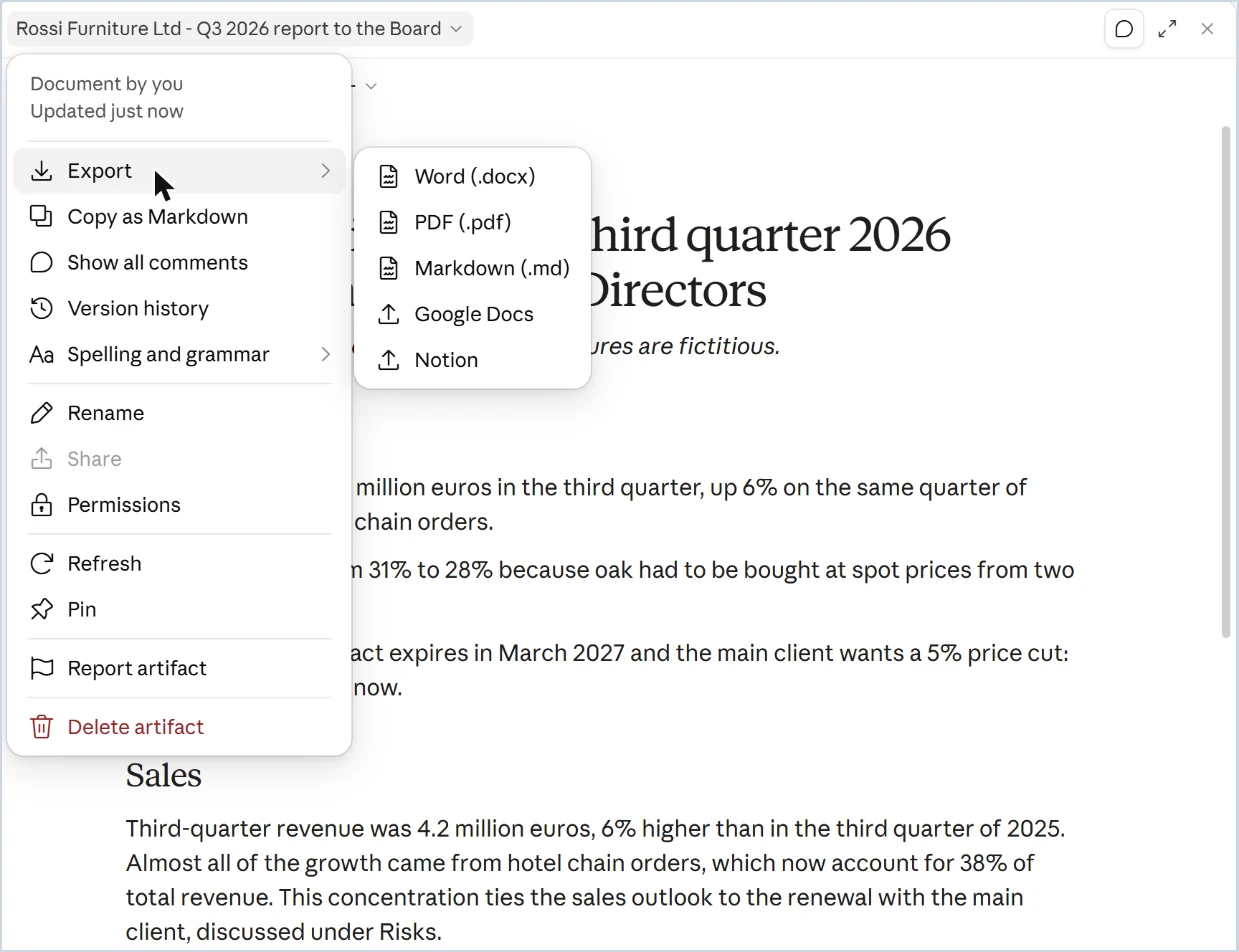
File creation is available on all plans, including the free one: Claude creates Word documents, Excel sheets, PowerPoint presentations and PDFs by running code inside the conversation, and the file is downloaded from the chat. With some plans the document instead opens next to the chat and is downloaded as Word from the "Export" menu, as in the image. On the personal plans you turn it on in Settings, in the Capabilities section; on the Team and Enterprise plans it's managed by the administrator, who can turn it off. Creating files uses up more of your usage than a normal chat, and each file can be at most 30 MB. Anthropic warns that instructions hidden in a file or a website can lead Claude to run unintended code: watch what it does while it works.
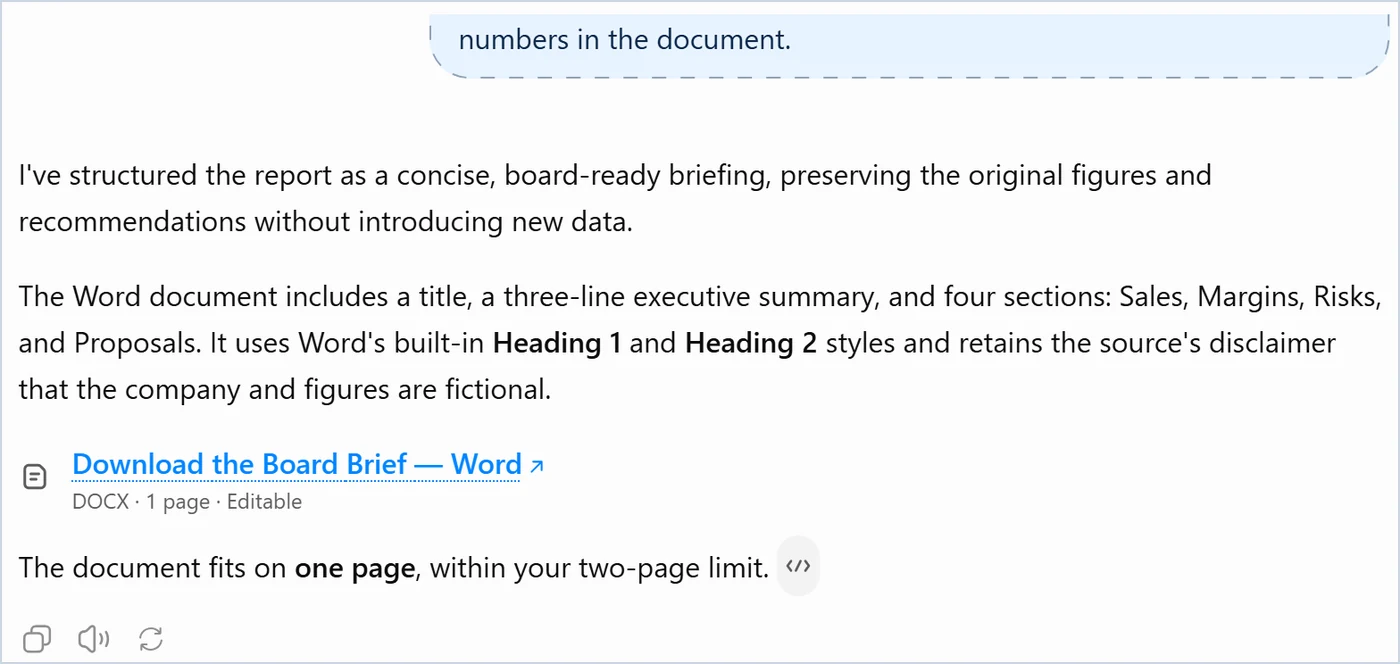
In the chat, with the Plus plan, ChatGPT creates the Word document, shows it in preview next to the conversation and lets you download it with "Download": that is what you see in the image. OpenAI's help also describes creating and editing documents, spreadsheets and presentations in Work, where availability depends on plan, workspace settings, file type and device. Work operates on Google Docs, Sheets and Slides if you connect Google Workspace, and in the desktop app on Excel, with the ChatGPT for Excel add-in; according to OpenAI's help, at launch PowerPoint was not included in this workflow. In company workspaces the administrator decides which actions are available.
With a Microsoft 365 Copilot licence you work inside Word, Excel and PowerPoint, on the open file. Without the licence, in many organisations Copilot is absent from these applications: if you cannot find the button in Word, it depends on your organisation's licence rather than on a setting of yours. The chat remains, where you ask for the file and download it, as in the other two tools.
For spreadsheets Microsoft also offers Agent Mode in Excel, which works on the open workbook in several steps. Who can use it, and why in Italy it is not available for now, is covered in stage 7.
You ask for the file as in the others. For long texts Gemini uses Canvas, a panel beside the chat (item "Canvas" in the "+" menu) in which the document is corrected point by point and from which it is exported to Google Docs, which then downloads it as Word. If you receive text and need a file, ask it to open it in Canvas and export it. The office look and the check on the file remain yours.