Session: twenty minutes. You need: a writing task you have to do today anyway; if you have none, the lunch invitation from "Start here".
1. Pick one tool, just one
If your organisation provides one, use that: it's the one you'll be able to use with office documents. Otherwise open Claude (claude.ai), ChatGPT (chatgpt.com) or Gemini (gemini.google.com) and create a free account with your email. Copilot Chat, if your organisation uses Microsoft 365, opens with your work account from m365.cloud.microsoft/chat. For the first stages the choice of tool matters little: what you learn on one applies to the other. Switching tools every day, on the other hand, makes you start over every time. For all of level 1 the free plan is enough; what a subscription adds is in the fact sheet "The tools: free or paid", at the end of the guide.
Before you write: how the screen is laid out
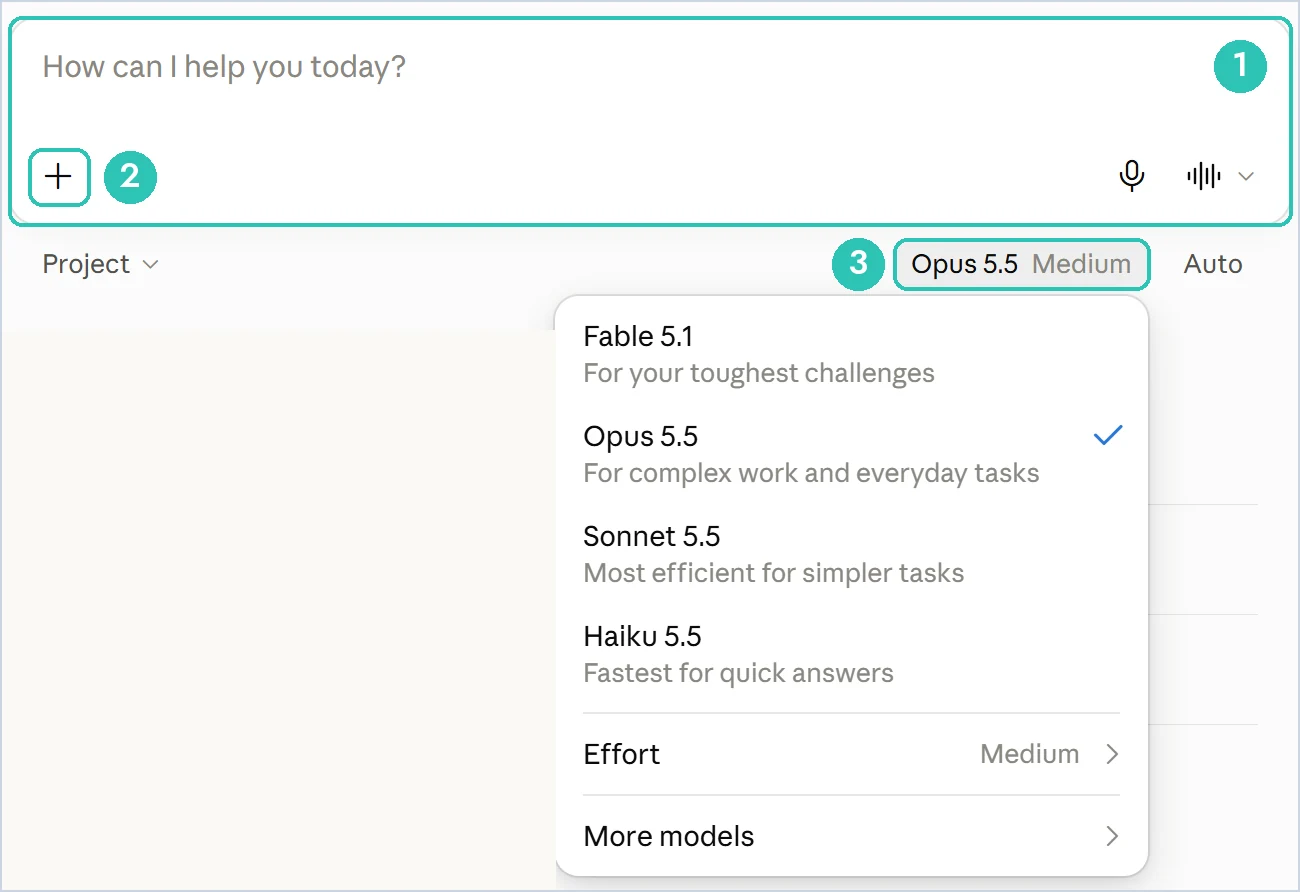
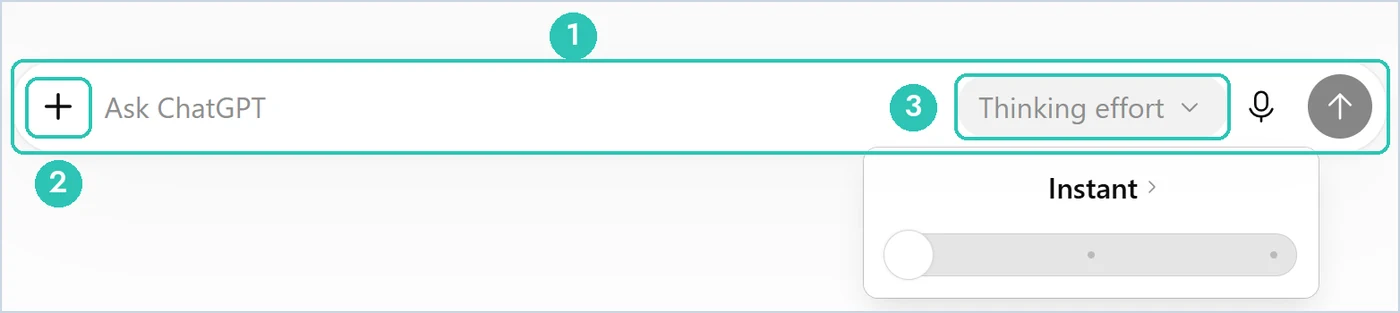
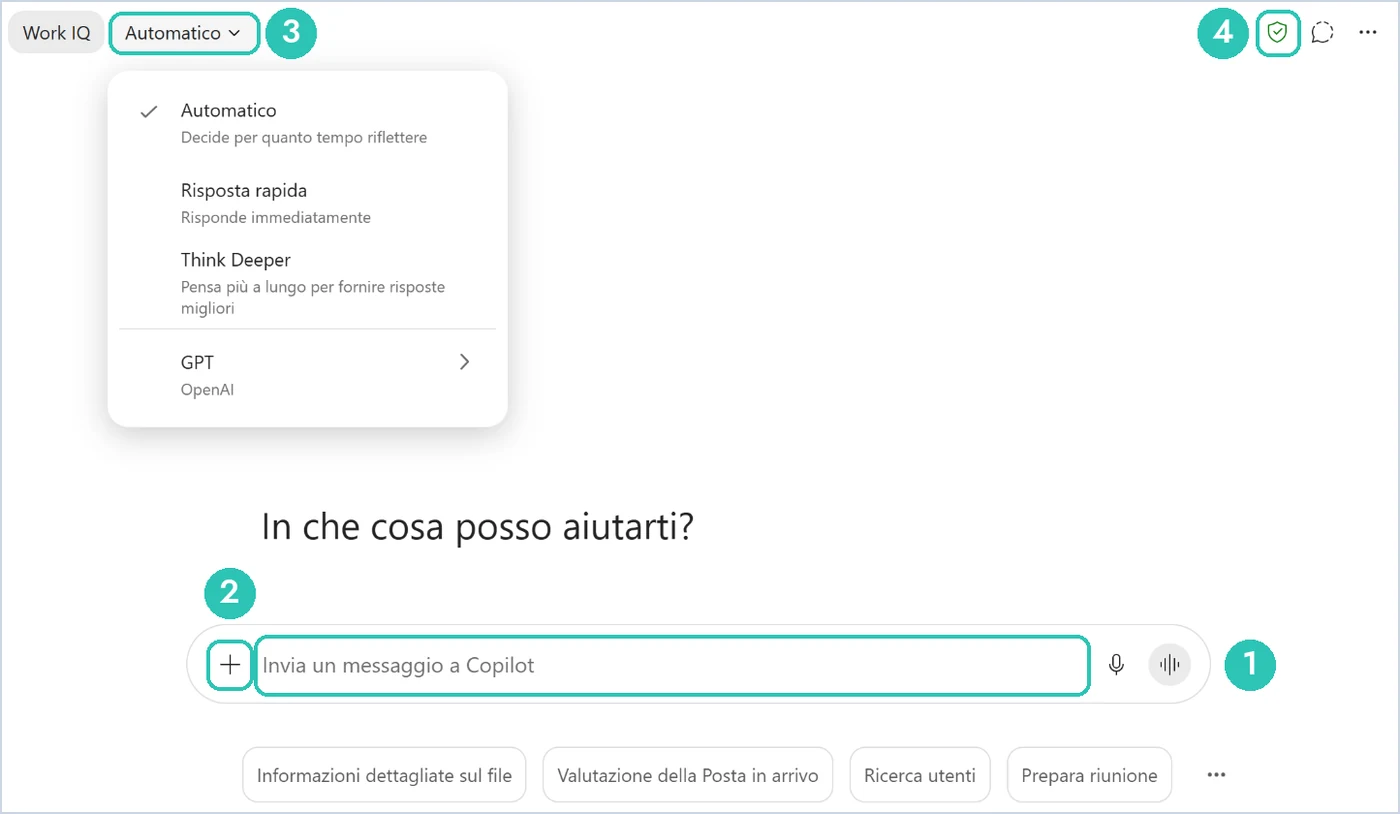
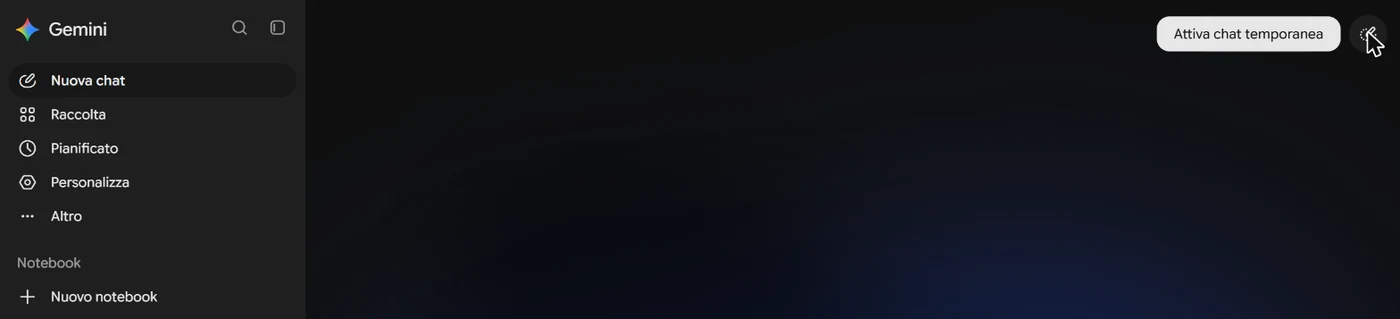
The four interfaces look alike. At the bottom is the box where you type. Next to it, a "+" button or a paperclip to attach files and turn on tools such as web search. Near the box or at the top is the model selector: the same product lets you choose between different engines, faster and lighter ones or ones that can reason longer before answering. For today leave the default choice; in stage 2 you try changing it. Why there are models of different sizes is explained in chapter 3, in the sections "Big is not always better: efficient models" (page 72) and "New techniques for improving the capabilities of LLMs" (page 74), where you'll find reasoning models. Which models exist today, and who makes them, is on librovivoia.it/r/mercato.

2. Pick the task
It needs three features: it's real, it's for today, and if it comes out badly nothing happens. The reply to a supplier asking for an extension. The outline for Thursday's meeting. Three lines introducing a colleague to a client. If you teach, the notice to families for a school trip, with place, time and what to bring. If you study, the outline for presenting a topic you already know. If you need AI outside work, the message for organising something with other people. For now leave out anything that contains people's names, confidential figures or internal documents: you'll get there in stage 3.
3. Write the request as you would to a colleague who just started
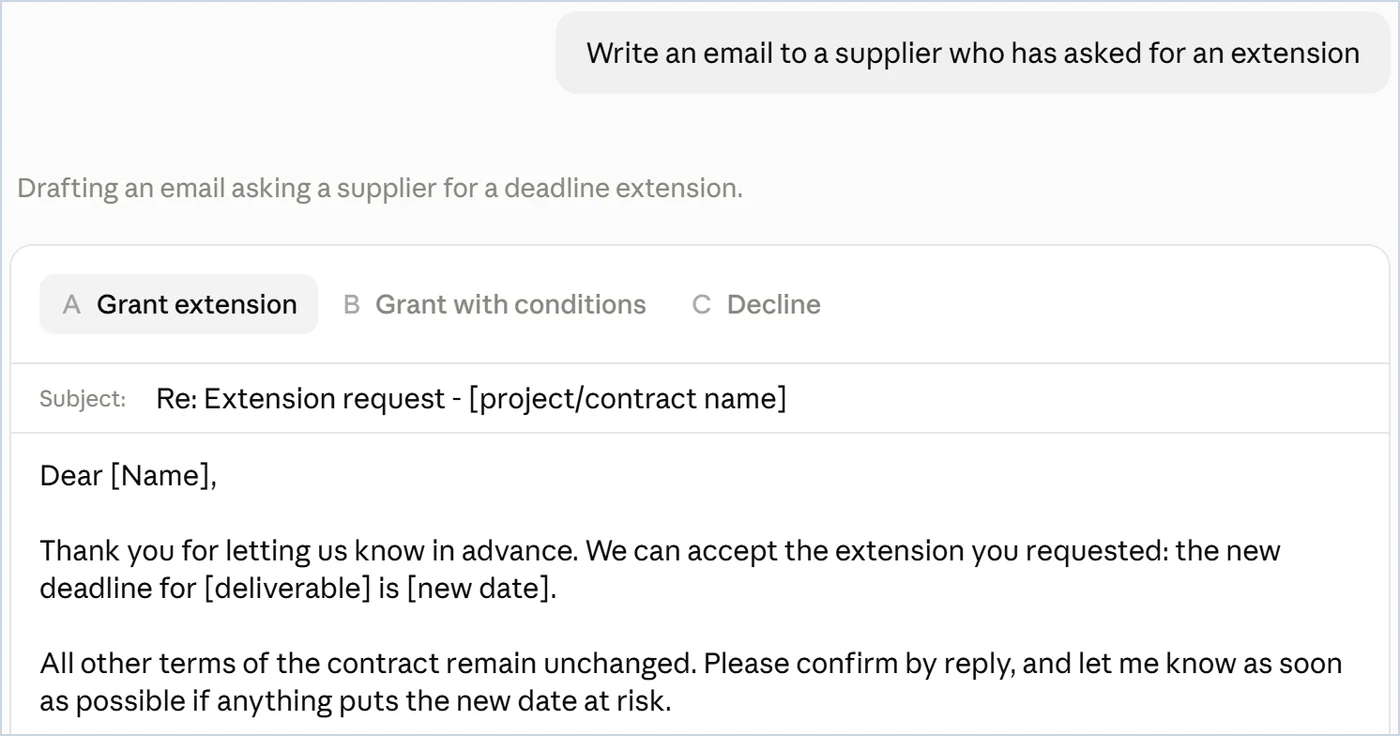
A new colleague is capable, but knows nothing about you, the recipient or how you want the work done. The model is in the same position. Copy this template and fill in the brackets:
I work as [role] in [type of organisation]. I need to [task] for [recipient: who they are, what they already know, what they want from me]. The tone is [formal / friendly / plain]. I need [format: a ten-line email, a five-point list, an outline with timings]. Keep in mind that [the constraint an outsider can't guess].
A filled-in example:
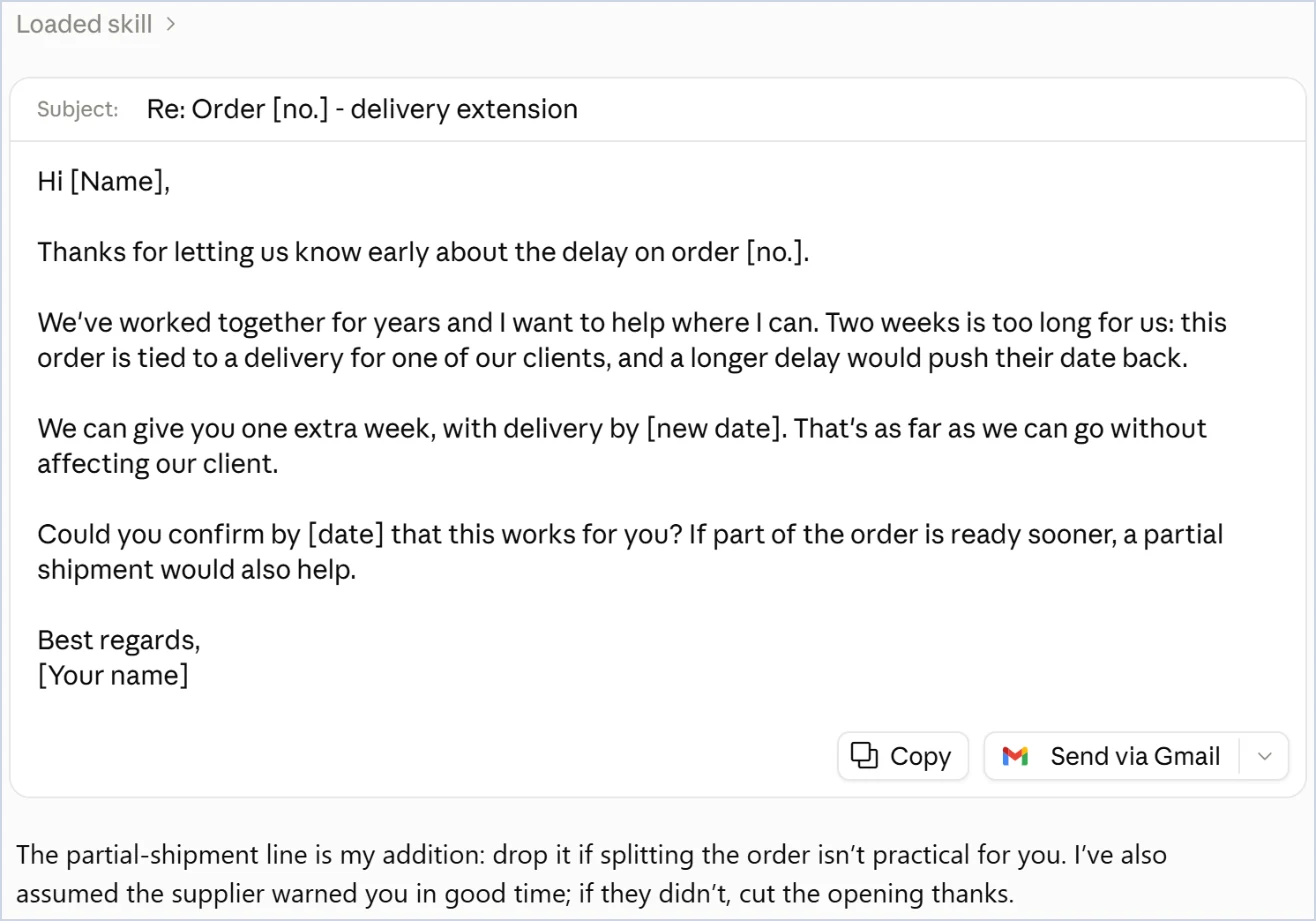
I work as purchasing manager in a furniture company. I need to reply to a supplier who is asking for a two-week extension on delivering an order. We've known them for years and want to keep them, but the extension means a delay for one of our clients. The tone is friendly and firm. I need a ten-line email. Keep in mind that we can grant one week, not two.
4. Answer the answer
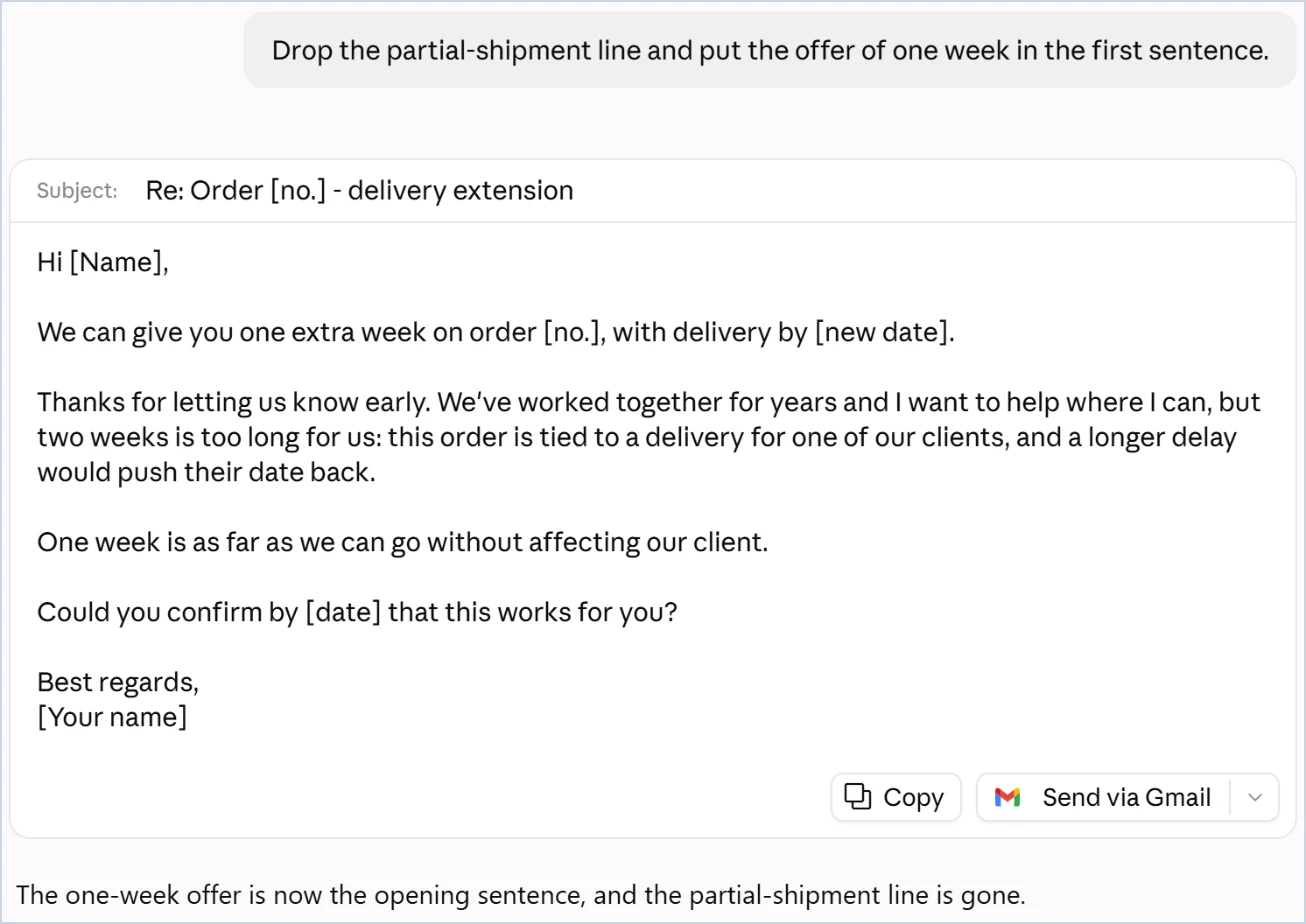
The first version is a draft. Read it and write what you would change, in your own words: "shorter", "the second sentence is too harsh", "the date is missing". The model rewrites taking into account everything you've said to each other. Do it at least twice: good work comes out of the second or third exchange.
Here's the difference on a real case: the same email, asked for first without context, then with the template from step 3, then corrected.
5. Actually use it
Reread the final text from start to finish, fix whatever you'd never say, and send it. With your name on it, you answer for it.
If you get stuck
- You can't find a button. The "+" and the selector are next to the box where you type, as in the images in this stage. If the item you're looking for is missing from the menu, it may depend on the plan: some items are only there on paid plans.
- The tool tells you you've reached the limit. On free plans usage is metered: pick up again when the tool says so, or carry on with another of the four.
- The answer is generic. Usually the recipient or the constraint is missing: add them, as in the example above.
- The answer doesn't respect the format. Repeat the constraint on its own, in one line: "Ten lines maximum." If after two corrections it still doesn't respect it, open a new chat with the full request.
- You get text instead of a file. Ask for the file explicitly, "make it a Word document I can download": that's stage 5.
Two rules for today. Don't paste personal or confidential data. If facts, dates or numbers you didn't give it show up in the answer, check them before using them: stage 4 explains why.
What you just saw
You gave the model a context, a recipient, a format and a constraint, and you corrected the result by talking. These are the first techniques in chapter 5, "Getting what you need": open it at the section "Prompt engineering: how to talk to models" and you'll find what you just saw happen, with the reason.
In the book. Chapter 5, "Getting what you need", section 5.1 "Prompt engineering: how to talk to models", page 95; chapter 3, sections 3.2 and 3.3, pages 72 and 74, for models of different sizes. The book on Amazon.
It opens at claude.ai or with the desktop and mobile app. The free plan includes chat on web, desktop and mobile, web search and memory across conversations; the Pro plan costs 20 dollars a month and gives access to more models. The selector is next to the send button: from there you choose the model, the effort level (from Low to Max: higher means more thorough but slower answers) and extended thinking. You can change it at any point in the conversation, and it applies from the next answer.
It opens at chatgpt.com or with the app. The free plan includes text chat and, with limits, file uploads, memory and deep research. On the free plan there's one model, with the option of having it reason longer on hard questions; on paid plans the selector offers more levels, from the instant answer to the longest reasoning.
If you have a Microsoft 365 account at work, Copilot Chat is already included: you open it from the Microsoft Copilot app, on the web from m365.cloud.microsoft/chat after signing in with your work account, or inside Teams, Outlook and Edge. The selector at the top left offers three modes: Auto, the default, which decides on its own how long to think; Quick response; Think Deeper, which reasons longer. In the screenshot, taken with the licence, there's also a GPT item for choosing an OpenAI model. With the licence, in the Researcher agent you can also choose a Claude model, if the administrator has enabled Anthropic's models. The green shield at the top, next to the new chat button, tells you enterprise data protection applies. Without the Microsoft 365 Copilot licence it answers from the web and from the files you upload, with one exception inside Outlook that you'll see in stage 16; with the licence it also works on the organisation's mail, calendar and documents. Microsoft has renamed Microsoft 365 Copilot to Microsoft Copilot, and Copilot Chat to Microsoft Copilot Chat: for a while the two names will coexist, and here I use the old ones.
It opens at gemini.google.com or in the app, with a Google account. The box is at the bottom, with the "+" on the left and the model selector on the right: on the free plan there is the lightest one, Flash-Lite; the Google AI Plus and Pro plans add Flash and Pro, "advanced reasoning". The side menu has "New chat" at the top; at the top right an icon opens the temporary chat, which is not kept in your activity and does not use memory. Settings are in the gear at the bottom left, next to your name.