Session: three quarters of an hour. You need: a mail, calendar or document storage account, and permission to connect it.
Until now you brought the data into the conversation yourself, one piece at a time. By connecting a service, the model goes and reads it on its own in the place where you work, and in some cases it can also act: write a draft, create an event, save a file. The model is the same; what changes is the set-up around it, which now has tools. Today you connect one, try it, and learn to remove it.
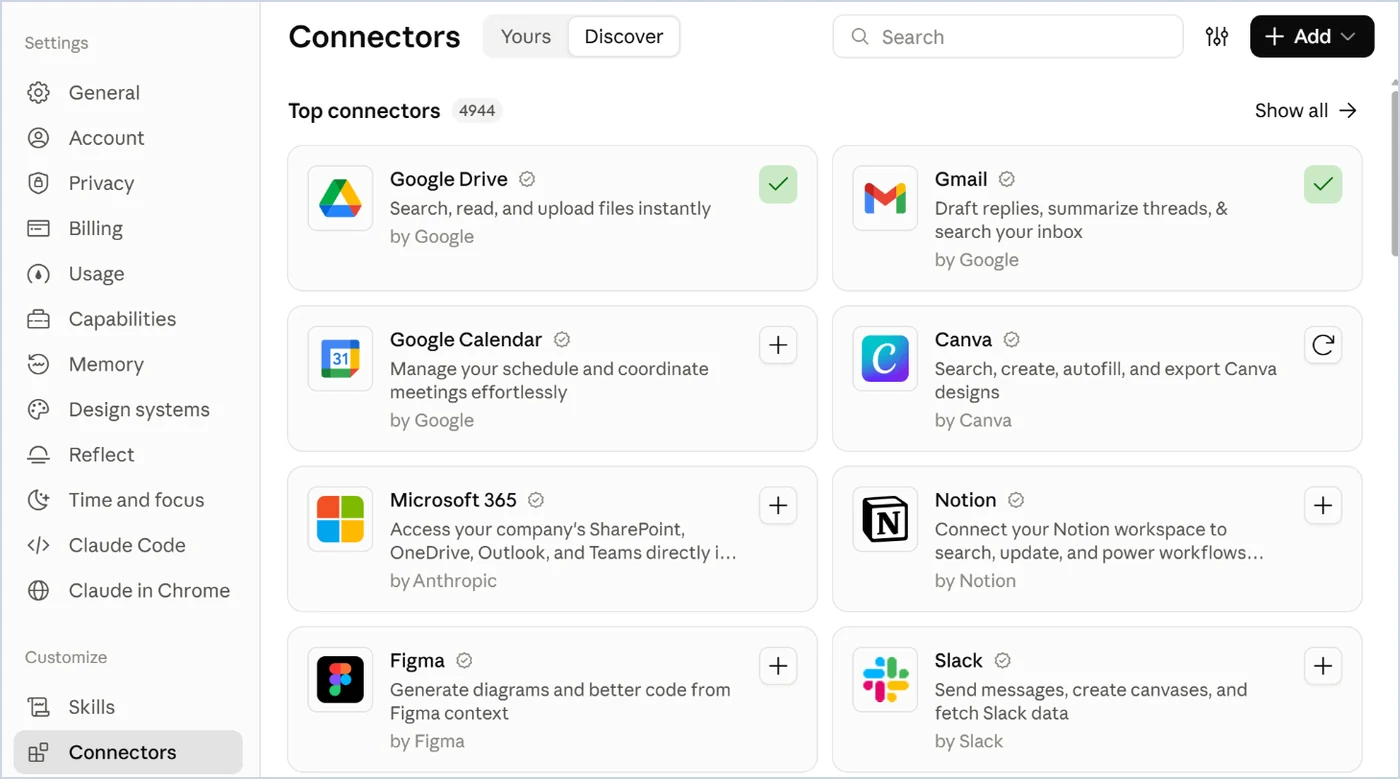
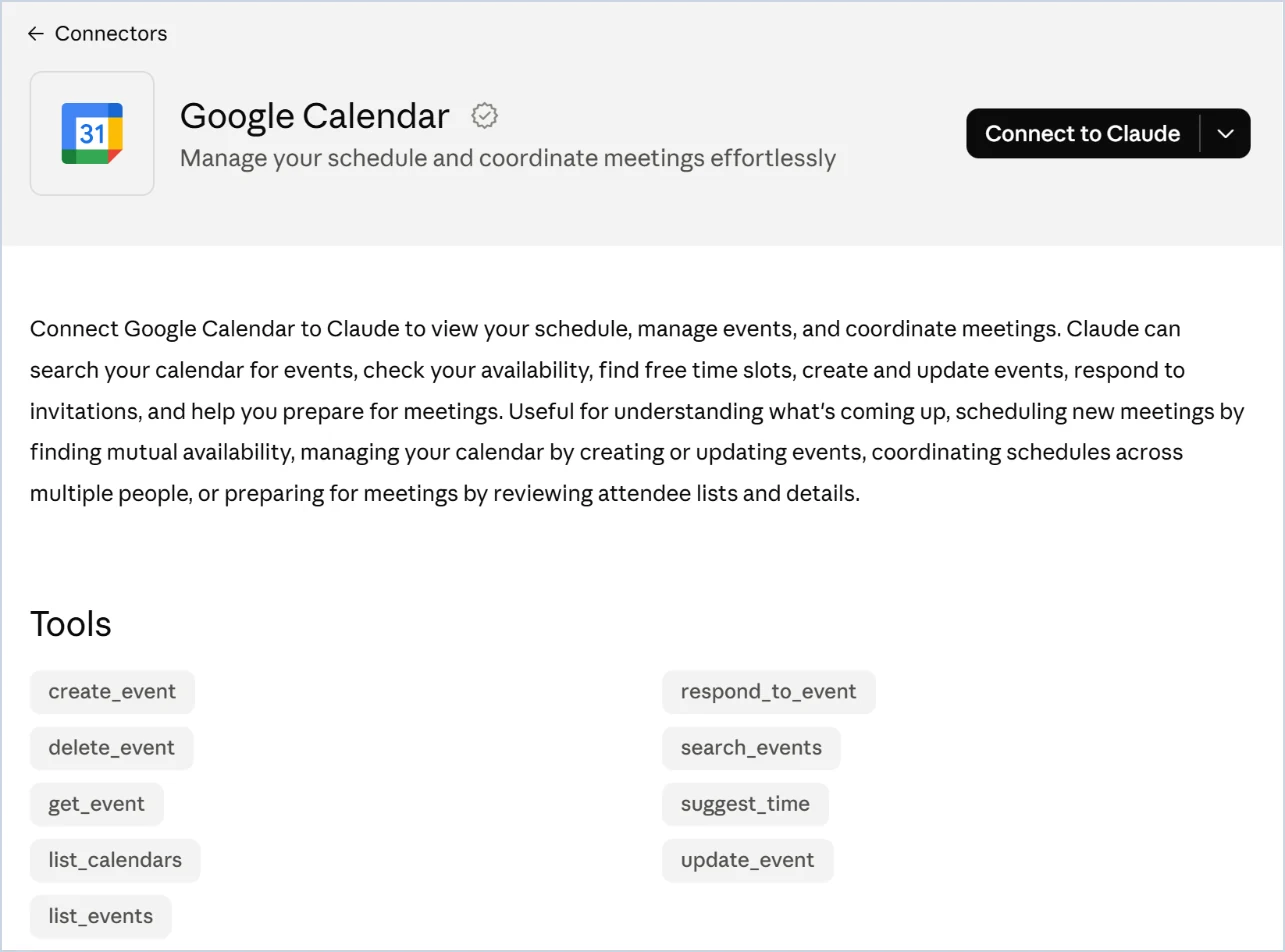
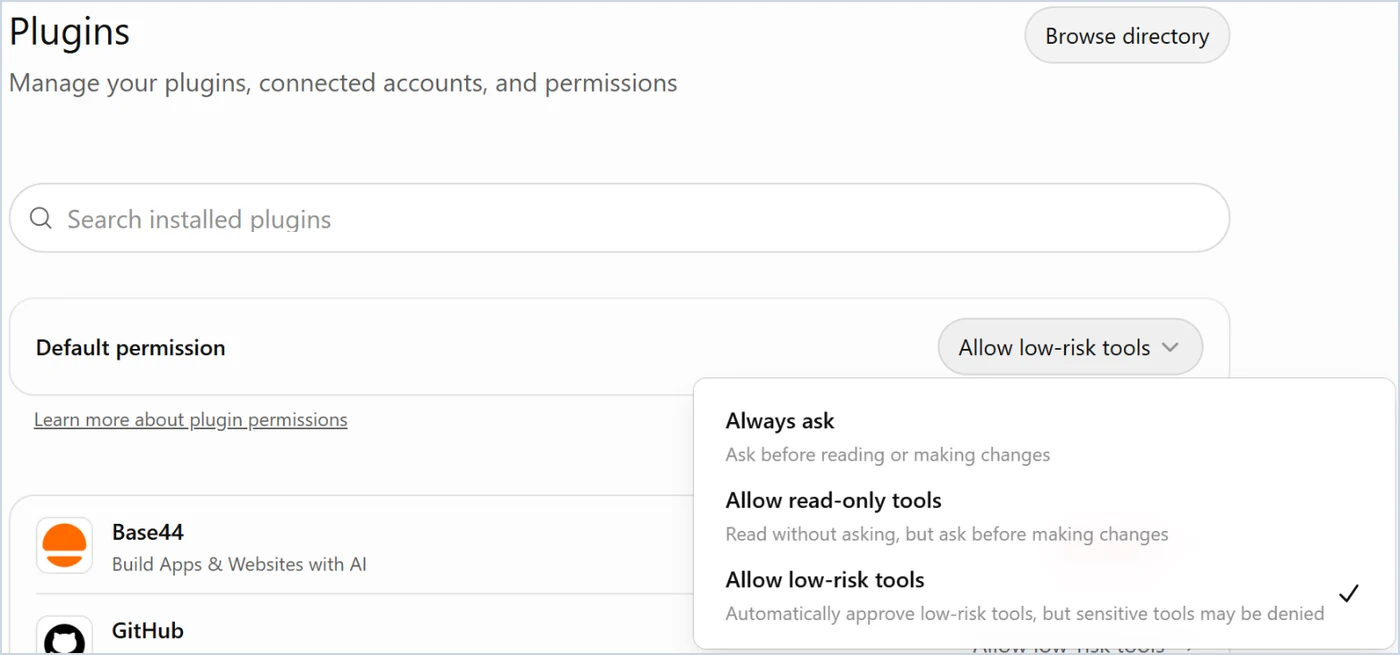
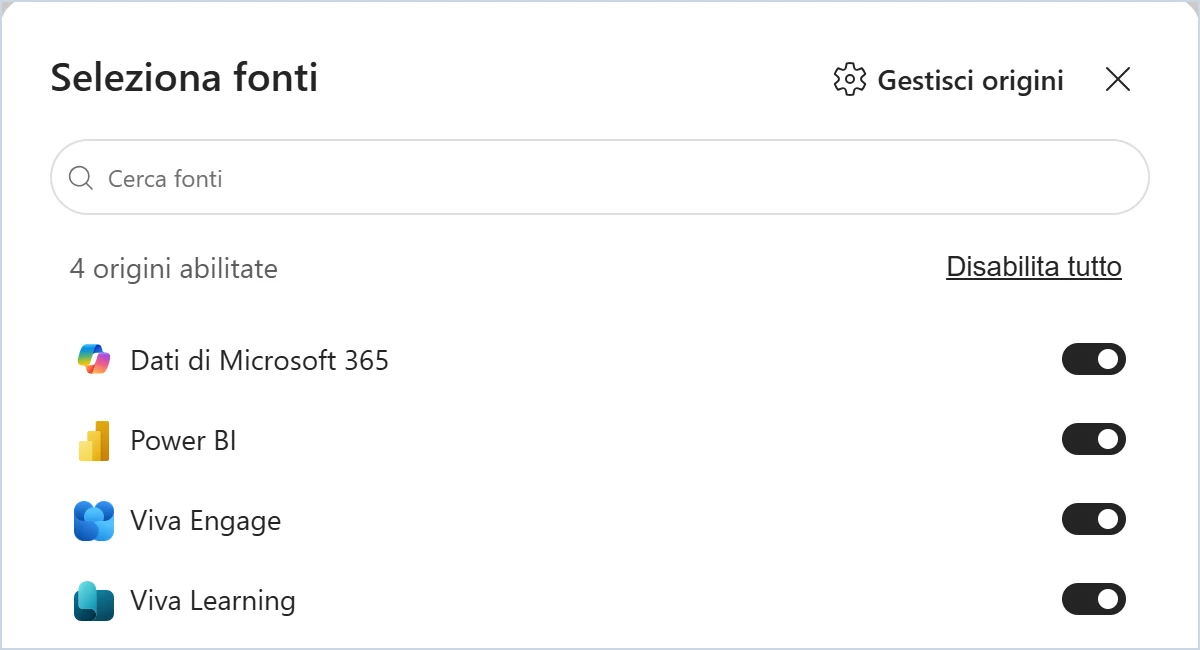
A word about the names, because they change from one tool to another. Claude calls them connectors; ChatGPT, in the interface as of October 2026, calls them plugins (OpenAI's guide says apps); Copilot speaks of data sources, and calls the links to the outside world connectors. They are the same thing: a link between the model and a service, with the list of actions the model can ask of that service, read the mail, search for a file, create an event. In the screenshots of this stage you will see quite a few, and not all of them well known. On Claude's page there are Google Drive, Gmail and Google Calendar, then Microsoft 365, which opens the organisation's SharePoint, OneDrive, Outlook and Teams, and four work tools used mostly by people who do design, documentation and development: Canva and Figma for graphics, Notion for notes and working pages, Slack for company messaging. On ChatGPT's page, besides Gmail and Google Drive, there are GitHub, the programmers' code repository, and Base44, a service for building websites and web applications. In Copilot the sources are Microsoft's: Microsoft 365 data, Power BI for dashboards, Viva Engage and Viva Learning for the internal community and training. If a name means nothing to you, you do not need it: you connect only what you use.
Copilot starts already connected. Before connecting anything, a difference in set-up between the tools, which decides how much work this stage asks of you. Copilot is born inside Microsoft 365: with the Microsoft 365 Copilot licence it already sees mail, calendar, meetings, Teams chats and OneDrive and SharePoint files, with the permissions you have and without making copies of them elsewhere. Microsoft calls this base Work IQ, and a button with the same name turns it on and off: off, Copilot answers with the web, the files you attach and your profile. Claude and ChatGPT start instead with nothing of the organisation's: every source has to be connected, one by one, by you or by the administrator, and until you connect it the model does not see it. Their business versions shorten the distance with a single search across the connected sources, described in the fact sheet "If the tool comes from your office"; the connection remains a step to take and to authorise. If you use Copilot with the licence, for the Microsoft sources step 1 is already done; the reading and action tests of steps 3 and 4 apply there too.
An example of how they are used, taken from this website. Libro Vivo, the website of this guide, is kept alive by a system built inside Claude with some of the connectors you see in the screenshots. Gmail receives my approvals and sends the reports; Google Drive keeps the documents; Base44 is the service the site runs on, and its connector publishes the articles and updates the pages; Brevo sends out the newsletter; the browser driven by the model is for Amazon, Substack and Google's Search Console, which have no direct connection; the project folder on my computer holds the book, the articles and the state files. Every Saturday a scheduled task prepares the shortlist of the week's articles and emails it to me; every month another one rereads the nine pages linked to the book's QR codes. Nothing goes out without my go-ahead: the actions that publish or send ask for confirmation, those that read do not. It is the setting from step 2, on a larger scale.
1. One source only
Choose the service you consult most, just one: the calendar, the mail or the document storage. The three questions from stage 3 now apply to the whole archive and not to one file: whose data is this, what does the contract with the provider say, what happens if it stays there. If you're in an organisation, before connecting anything look at the internal rules: often the administrator decides, and the fact sheet "If the tool comes from your office" says what is usually theirs.
2. Permissions, before the first question
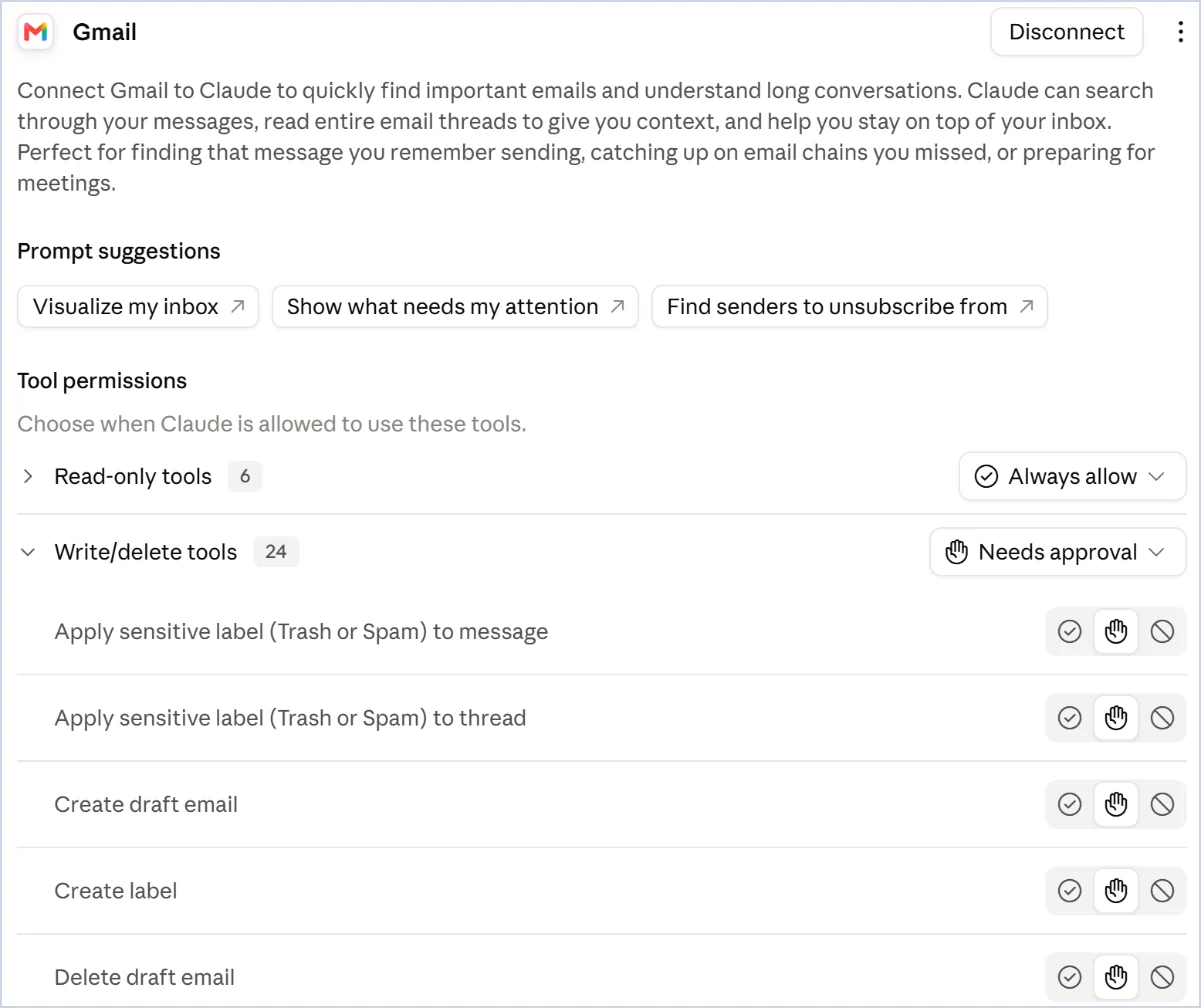
When you connect the service, read what it asks for: read-only, or actions too. Set up a confirmation request on every action that writes, sends or deletes. The convenience of not confirming is earned later, one action at a time, once you've seen how it behaves.
3. A reading test
"What meetings do I have on Thursday and what do I need to prepare for each? For each point, give the email or document it comes from." Open two of the sources it cites and check. It's the attribution check from stage 3, applied to a whole archive.
If you connected your mail, a second test: "Take the latest email from [name] that has an attachment and summarise the attachment in five lines, quoting the sentences each point comes from." The document reaches the model without you opening it, and that is exactly why the quotations are checked by opening it. Not all connectors read attachments: if yours doesn't, you've found a limit that's worth knowing before stage 19.
4. An action test, with confirmation
"Prepare a draft reply to the latest email from [name], without sending it." Watch what it asks you before acting and what it does without asking. If it does something without asking and you wanted to be consulted, go back to the permissions.
5. Revoking
Find where the service is disconnected, before you need it. And disconnect what you don't use: the description of every connected tool enters the context window with every message, even when you don't use it, and more tools in the list means more chances of choosing the wrong one.
6. In whose name
One last thing, which counts for more than the five steps put together once the work starts to run on its own (stage 20). When you connect your mail, your calendar, your archive, the tool works with your credentials: for the systems it touches, the agent is you. The email it sends is sent by you, the calendar invitation arrives in your name, the file it edits shows as edited by you, and no log distinguishes what you did from what it did. As long as you are the one who starts every job and reads every result, that is fine, and the rule of the draft that goes out only after your confirmation (step 4) is enough.
When instead a task runs without you, it pays to give the agent an identity of its own. For someone who works alone it is simple: a second account, mail or Google or Microsoft, in the assistant's name, with which you share only the folder, the calendar or the mailbox that task requires, and to which you connect the tool instead of your own. Three things change. Everything the agent does carries its name, and whoever receives an email from "Marco's assistant" knows what they are reading. You can see from the account what it did, by opening the sent mail or the file history. And you stop it with one gesture, by removing the sharing or changing the password, without touching your own account. In exchange you keep two logins instead of one, and you give it only what it needs: an agent with your whole mailbox and a password that never expires is the case security officers fear most.
In organisations this work is done by the IT department, and the tools ask it of them. Microsoft, for example, automatically assigns every agent built with Copilot Studio an identity of its own in its access system, Entra, with the permissions tied to that identity and a log of its actions; it deletes it when the agent is deleted (Microsoft page of 15 September 2026). Before building an agent that starts on its own with the office's data, ask what it is called, whose it is, what it can do and where what it has done can be read: these are the four questions IT will ask you anyway.
What you just saw
The connection almost always goes through a standard, the Model Context Protocol: a program for each service, which describes to the model the things it can do, and a connector inside the application that carries them out and returns the result to it. Chapter 4 of the book presents tools as one of the five parts of the set-up, in the section on the harness; appendix Q of the book, "How the Model Context Protocol works", explains the round trip of a call and the box on tools that cost tokens before they are even used; chapter 9 of the book comes back to the boundary in the section "The data that do not leave".
In the book. Chapter 4, section 4.4 "The harness: the set-up around the model", page 89; chapter 6, section 6.2 "The four pillars of Agentic AI", page 105, for the Model Context Protocol; appendix Q "How the Model Context Protocol works", page 262; chapter 9, section 9.6 "The data that do not leave", page 147. The book on Amazon.
Connectors are in all plans. You add them from Customize > Connectors, "Discover" tab, or from the "+" in the chat, under Connectors; you remove them from the same place. For each connected connector, "Tool permissions" separates read-only tools from write and delete tools, and for each one you choose between always allowing, asking for approval and blocking. In the Team and Enterprise plans an administrator enables them first, and for each action can choose between allowed, needs approval and blocked. The Microsoft 365 connector reads SharePoint, OneDrive, Outlook mail and calendar and the Teams chats you take part in: it's in all plans, works read-only unless the administrator enables writing, and requires initial consent from the organisation's Microsoft administrator.
The connected services, which OpenAI's guide calls apps, are called plugins in the interface as of 8 October 2026: they're in Settings > Plugins, you add them from "Browse directory" and disconnect them from the same place. The "Default permission" offers three choices: Always ask, Allow read-only tools, Allow low-risk tools. In business workspaces the administrator decides which plugins are available.
With a Microsoft 365 Copilot licence, the organisation's mail, calendar, meetings and files are already connected, within the limits of the permissions you have. Without a licence, Copilot Chat inside Outlook reads mail, calendar and part of the files: yours on OneDrive, those on the SharePoint sites you visit, those shared with you and those you've opened or edited. Sources outside Microsoft come in through connectors the administrator configures. The difference in approach is who does the connecting: in Claude and ChatGPT the user, in Copilot the organisation.
The sources are called connected apps: from the gear icon, "Connected apps", or "Personalise" > "Connectors". The Google apps, Gmail, Drive, Docs, Calendar, Keep and Tasks, connect together, and Google's guide says that Gemini reads and summarises in them, and in Calendar creates events; to connect them "Keep activity" has to be on, and with a work or school account the administrator has to enable them first. The reading and action tests are done the same way; revoking is on the same page.