Session: an hour. You need: a document a presentation will come from, a report or a note, and your office's PowerPoint template if you have one.
A presentation is the format in which form covers substance best: a tidy slide looks right. That's why this stage keeps three moments separate, the story in the chat, the form in the program, the check at the end.
1. The story, in the chat
Start from the document you already have and ask for the outline, with no file: "From this document propose an eight-slide presentation for [audience], [length] minutes. For each slide the title, written as the conclusion that should stick, and at most three lines, with the sentence of the document they come from." Correct the outline by talking: this is where the story gets decided, and a correction costs one line.
2. The slides, inside the office template
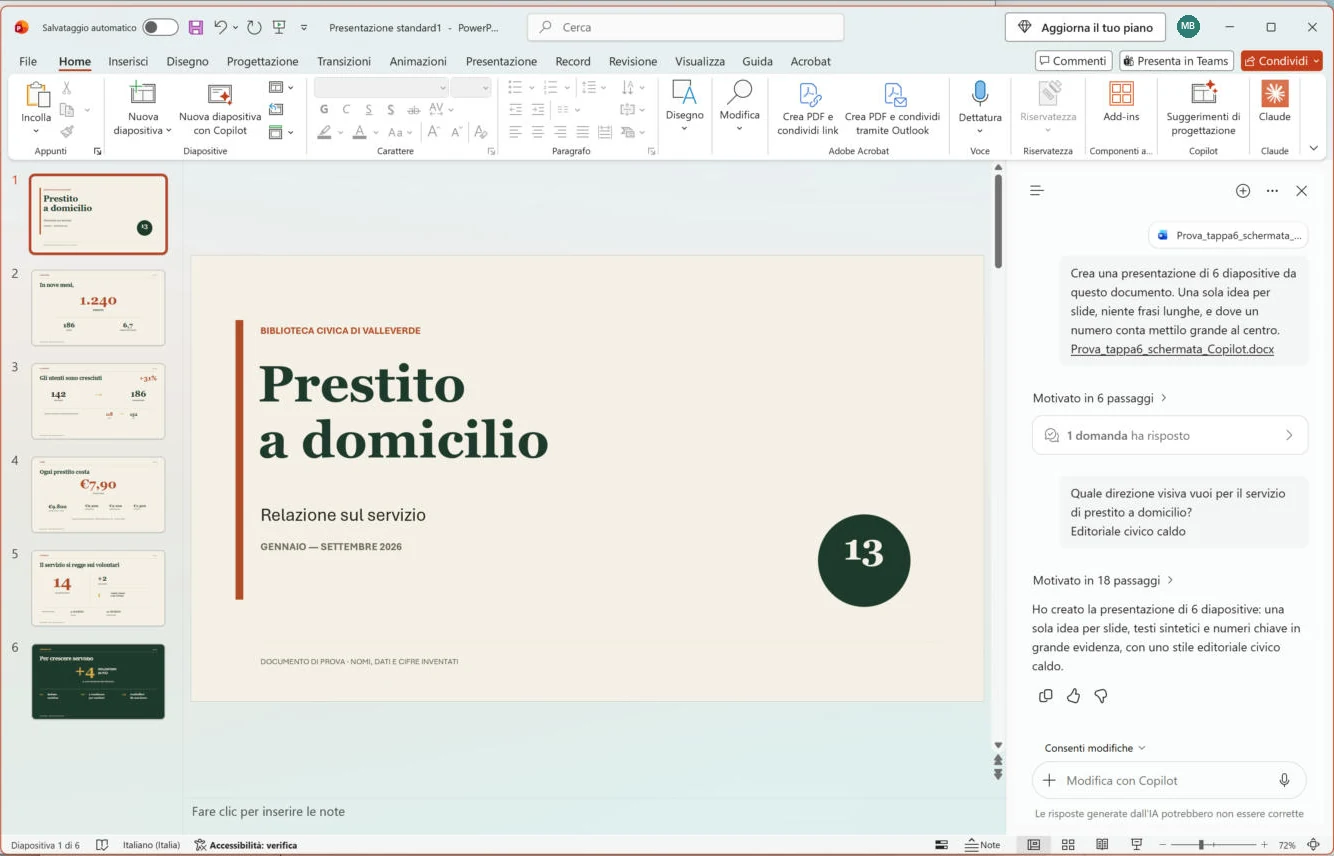
Open your office's PowerPoint template, with its fonts, colours and logo, and work in there: "Build the presentation on this outline, using the template's layouts. One idea per slide, no long sentences, and where a number matters put it large in the centre." Inside the program the tool uses the template's slide master; from the chat you upload the template and ask it to use it as the base, knowing that some graphic details may get lost. Copilot also has a shorter route, the presentation built directly from the Word document: you'll find it in the pane.
3. The corrections, one slide at a time
"On slide 4 the text is too dense: keep only the number and one line of comment." Asking it to redo everything for the fault of one slide puts the slides that were already right back in play too. Make the charts as in stage 7: in Excel, then bring them into the presentation, or ask for them inside PowerPoint as editable charts. Ask for the speaker notes at the end, when the slides no longer change.
4. The diagram
A five-step process, an organisation chart, the phases of a project: a diagram is understood before a bulleted list is. The model draws it by writing the code that produces it, and that's why you correct it in words, like a text: "Turn these five steps into an arrow diagram, left to right, with one line of text per box. Step 3 is the critical one: highlight it." Check that all the steps are there, in the right order, and that no arrow connects two things that in your work never touch. Ask for it in an editable form, PowerPoint shapes or an SVG file, so you can make the last-minute corrections yourself. Illustrations, that is, generated images, are a different matter and belong in the "Other uses" fact sheet.
5. The check, in PowerPoint
Before presenting, open the file in PowerPoint, not in the preview, and go through all the slides: text spilling out of its boxes, images out of place, template slides left empty. Then the numbers, each one against the document, with the moves from stage 4. Note how long it cost you, checks included, as in stage 5.
What you just saw
The request for the outline is the same as in stages 1 and 2: recipient, format, constraints. What changes is where the form is born. Inside PowerPoint the tool reads the open template and works with its layouts; and when it draws a diagram or a chart it writes the code that produces it, which is why you correct it in words. Chapter 5 explains the request that fixes recipient and constraints; chapter 4 the code that builds files, charts and diagrams in the model's place.
In the book. Chapter 5, section 5.1 "Prompt engineering: how to talk to models", page 95; chapter 4, section 4.4 "The harness: the set-up around the model", page 89. The book on Amazon.
With a Microsoft 365 Copilot licence, in PowerPoint the Copilot button on the Home tab offers to create a presentation from a file: you point to a Word document, or a PDF, and Copilot builds the slides from its structure. It helps if the document uses Word's styles, and Microsoft says it works best under 24 MB. If you open the organisation's template first, Copilot uses its theme and graphics; the open presentation is replaced, though, so save a copy first. Creating a presentation from a simple request is possible for all Copilot subscribers. On an open presentation, again with the licence, Copilot rewrites the text, translates and writes the speaker notes.
Claude for PowerPoint, on the Pro, Max, Team and Enterprise plans, works inside the program: it reads the slide master of the open template and uses its layouts, fonts and colours, edits one slide without redoing the others, builds a whole presentation from a description and turns a list into an editable PowerPoint diagram or chart. It is installed from the add-ins Store, or the administrator distributes it. Anthropic recommends using it only with trusted files: a downloaded template or an external file can contain hidden instructions. In the chat Claude creates presentations by running code, on all plans (stage 5), and draws charts and diagrams directly in the conversation: these are visualisations, in preview since April 2026 on the web and in the desktop app, which you keep by copying them as an image or downloading them as an SVG or HTML file.
ChatGPT for PowerPoint is a side pane available on all plans, with limited use on the free plan and on Go. It prepares a first version from notes, documents or spreadsheets, adds or revises slides, explains the story of a presentation and points out the weak spots and the questions the audience is likely to ask, adapts it to a different audience. It works inside the existing template, but OpenAI warns that the result may not follow it entirely and that some advanced changes to charts, shapes and formatting are limited.
Gemini doesn't go into PowerPoint. In Google Slides, with the Pro plan or with Workspace, the side panel creates slides from a text and images for the slides. The story in the chat (step 1) and the diagram (step 4) are done the same way in Gemini's chat; for the slides in the office template in PowerPoint use one of the other three.